This guide walks through setting up OpenUI with Ollama locally, including model configuration, troubleshooting, and real-world notes from testing different local and cloud-hosted models.
This guide is beginner-friendly and walks through setting up OpenUI with Ollama step by step. Let's get started.
Companion repo
OpenUI + Ollama Local Setup Repo
What You'll Need
Before we start, make sure you have these installed:
# Prerequisite Installation List:
# ├── Node.js          -> Download from nodejs.org
# ├── Ollama           -> Download from ollama.com
# ├── Git              -> Download from git-scm.com
# └── OpenUI           -> https://www.openui.com/
#
# System Requirements:
# ├── RAM              -> 16GB minimum (32GB recommended)
# ├── Disk Space       -> 30GB free space
# └── Operating System -> Windows 10+, macOS 10.15+, or Linux
Installing Ollama
Ollama is the tool that lets us run AI models locally. Here's how to set it up:
Step 1: Download and Install Ollama
- Go to ollama.com/download
- Click the download button for your OS (Windows, Mac, or Linux)
- After the setup is downloaded open it and press Install.
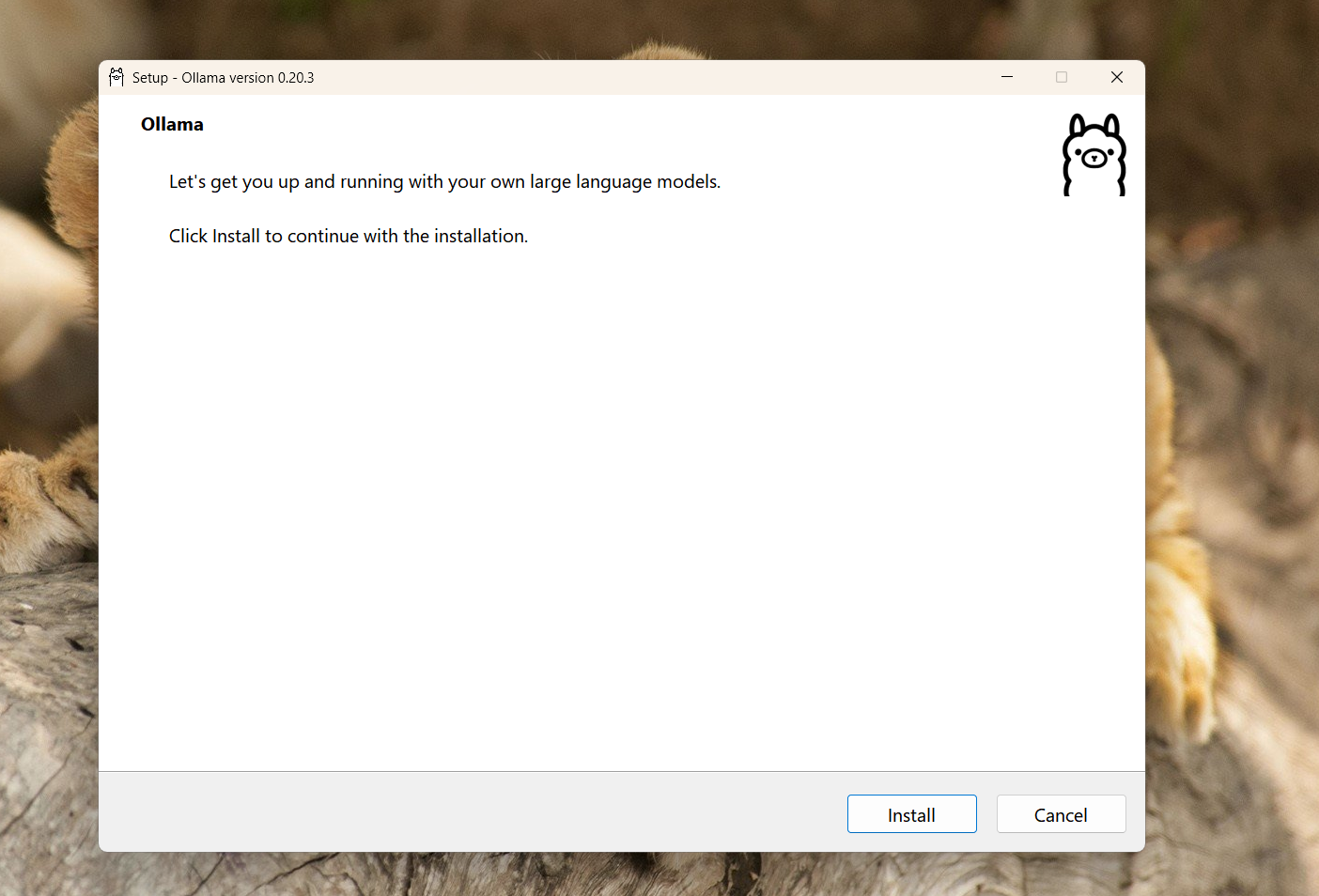
- When it's done, you should see the Ollama icon in your system tray. It means it has installed successfully.
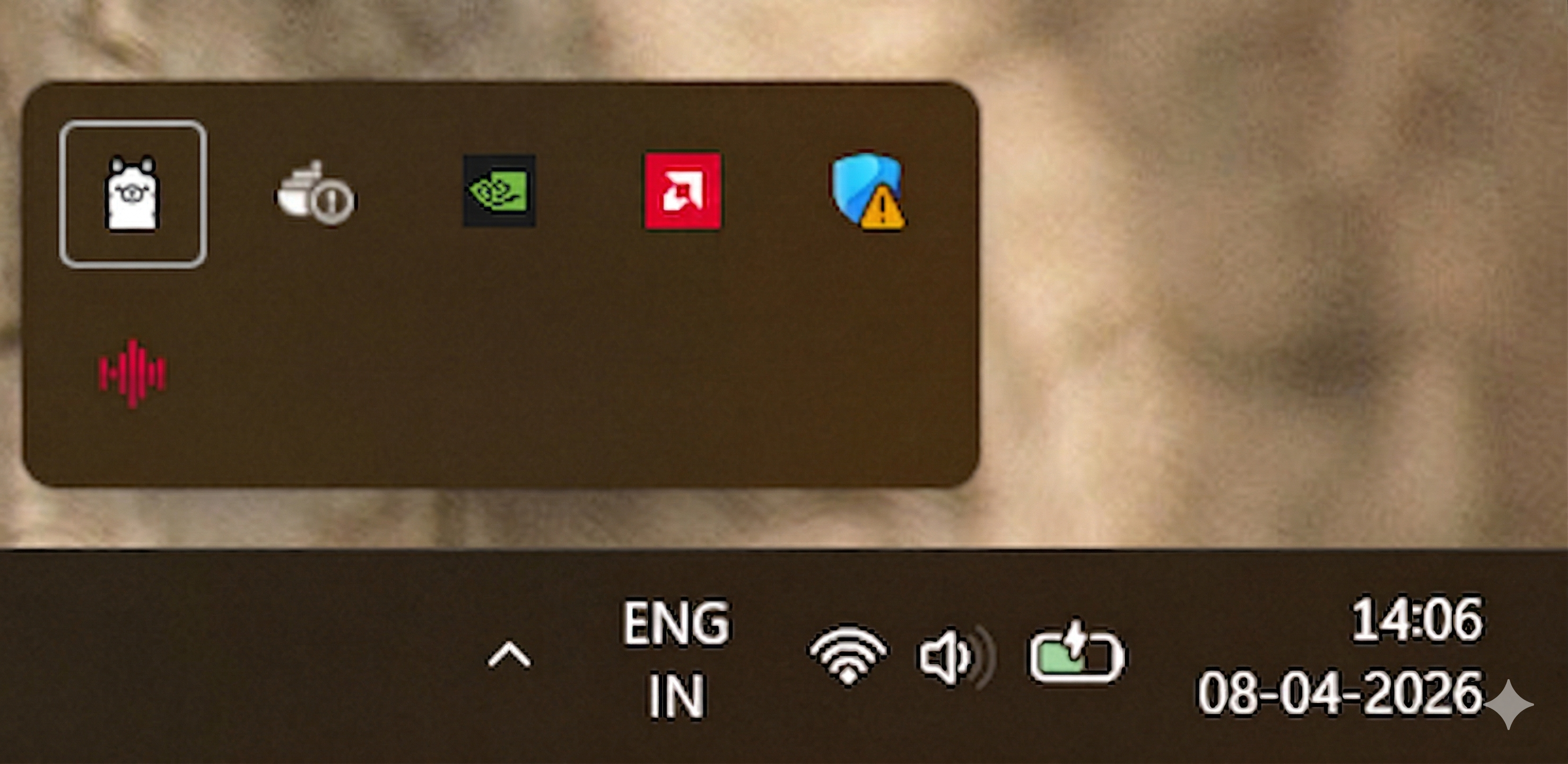
You can also check by opening your terminal (Command Prompt on Windows, Terminal on Mac) and type:
ollama
You should see a list of available commands. This confirms Ollama installed correctly.
That's it for Ollama setup.
Local Model Performance Notes
While testing OpenUI with Ollama, I noticed that smaller models (especially 3B–8B models) often had trouble generating stable UI layouts.
Common problems included:
# Failures encountered during testing:
# ├── broken UI output
# ├── incomplete layouts
# ├── syntax errors
# └── inconsistent rendering
Larger models like qwen2.5-coder:14b and gpt-oss:20b worked much better and produced more stable results, although they were slower on lower-memory systems.
In general, larger models handled OpenUI generation more reliably. Hosted models also produced the most consistent results during testing.
Models Tested with OpenUI
During testing, different models behaved very differently when generating openui-lang output.
Local Models
# Local Model Performance Matrix
# Model               Result          Notes
gpt-oss:20b         # [Strong]        Stable layouts, fewer syntax issues, slow on 16GB RAM.
qwen2.5-coder:14b   # [Mostly Usable] Good local balance, occasional malformed or incomplete UI.
gemma4:e2b          # [Usable]        Good outputs, sometimes broken UI structures.
phi4-mini:3.8b      # [Unstable]      Struggled with consistent structured generation.
Recommended: For better OpenUI results, larger models (generally 14B+ models) are recommended. They usually follow instructions more reliably and generate more stable UI layouts compared to smaller models.
Smaller models may still work for simple prompts, but they often struggle with larger or more complex UI generation tasks.
Cloud Models
Cloud-hosted models generally produced the most reliable OpenUI output during testing.
Models such as:
# Cloud models tested:
# ├── nemotron-3-super:cloud
# ├── qwen3-next:80b-cloud
# └── gemma4:31b-cloud
generated significantly more stable component trees and dashboard layouts compared to smaller local models.
Note: Some cloud-hosted Ollama models may require subscriptions or gated access depending on provider policies and account availability.
During testing, models such as
kimi-k2.5:cloud,minimax-m2.7:cloud, andglm-5.1:cloudreturned403 subscription requirederrors on some setups.
💡 Pro-Tip
You can find more models and details at the official Ollama Search.
Running OpenUI with Ollama Models
Step 1: Pull a Model from Ollama
Before running OpenUI, pull a local Ollama model.
Example:
ollama run gpt-oss:20b
This downloads the model locally and starts the Ollama runtime.
You can verify installed models using:
ollama list

Step 2: Create and Run an OpenUI App
Run the official OpenUI CLI:
npx @openuidev/cli@latest create --name genui-chat-app
cd genui-chat-app
This scaffolds a complete OpenUI chat application with:
- OpenUI Lang support,
- streaming UI generation,
- built-in components,
- and a ready-to-run Next.js setup.
src
├── app
│   ├── api
│   │   └── chat
│   │       └── route.ts # Backend endpoint that calls the OpenAI API
│   ├── globals.css
│   ├── layout.tsx
│   └── page.tsx # Chat UI implementation
└── library.ts # Component library
Create the .env File
On Windows PowerShell:
New-Item .env -ItemType File
On Linux/macOS:
touch .env
Then add your configuration inside .env:
OPENAI_BASE_URL=http://localhost:11434/v1
OPENAI_API_KEY=ollama
OPENAI_MODEL=gpt-oss:20b
You can replace the OPENAI_MODEL value with any Ollama local or cloud-hosted model.
Step 4: Start the Development Server
npm run dev
Open:
http://localhost:3000
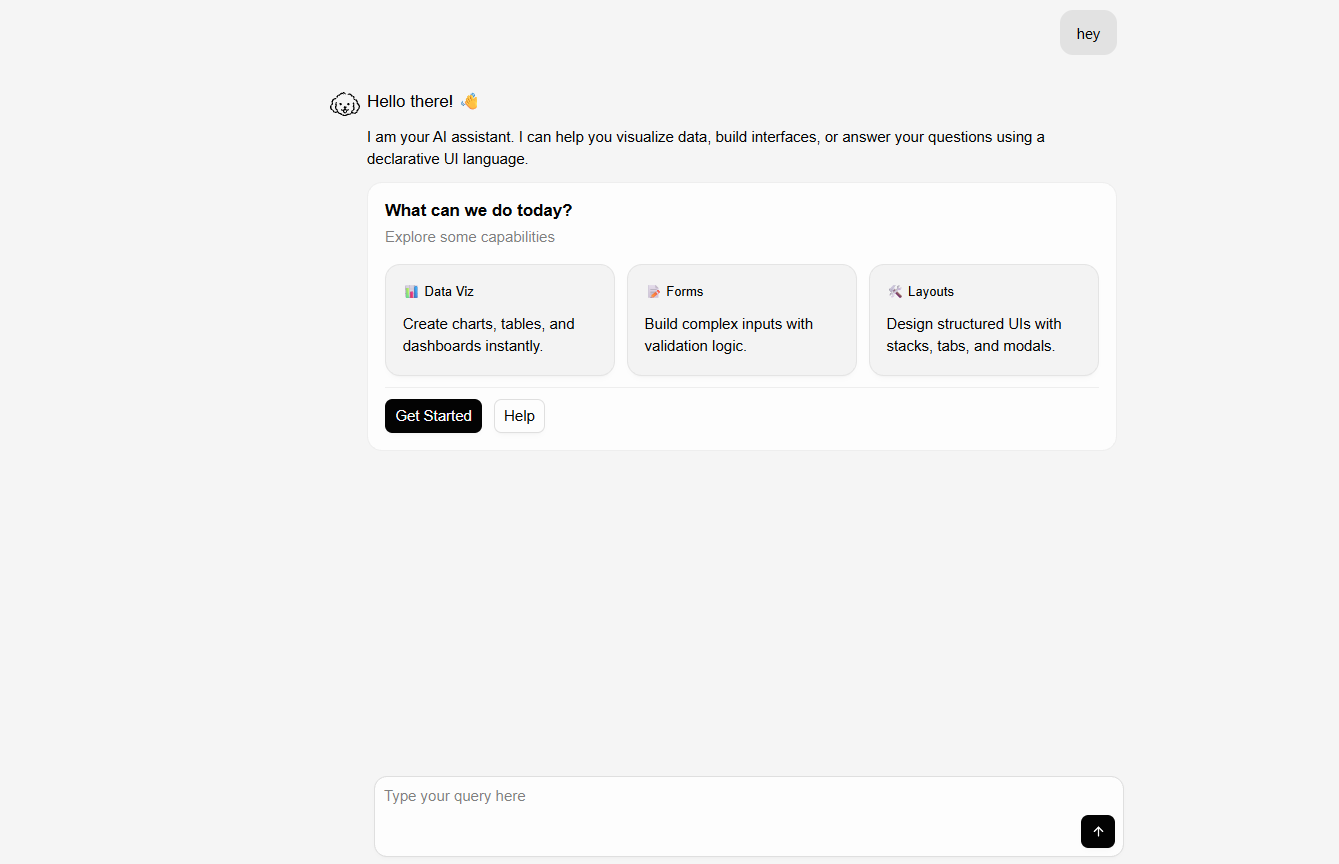
If everything is configured correctly, you should see the OpenUI chat interface running locally.
What this setup does:
# Environment & Server Config:
OPENAI_BASE_URL  # Connects OpenUI to your local Ollama instance
OPENAI_MODEL     # Selects the Ollama model used for UI generation
npm run dev      # Starts the local Next.js development server
Step 5: Test It
Open your browser to
http://localhost:3000
You should see the OpenUI chat interface
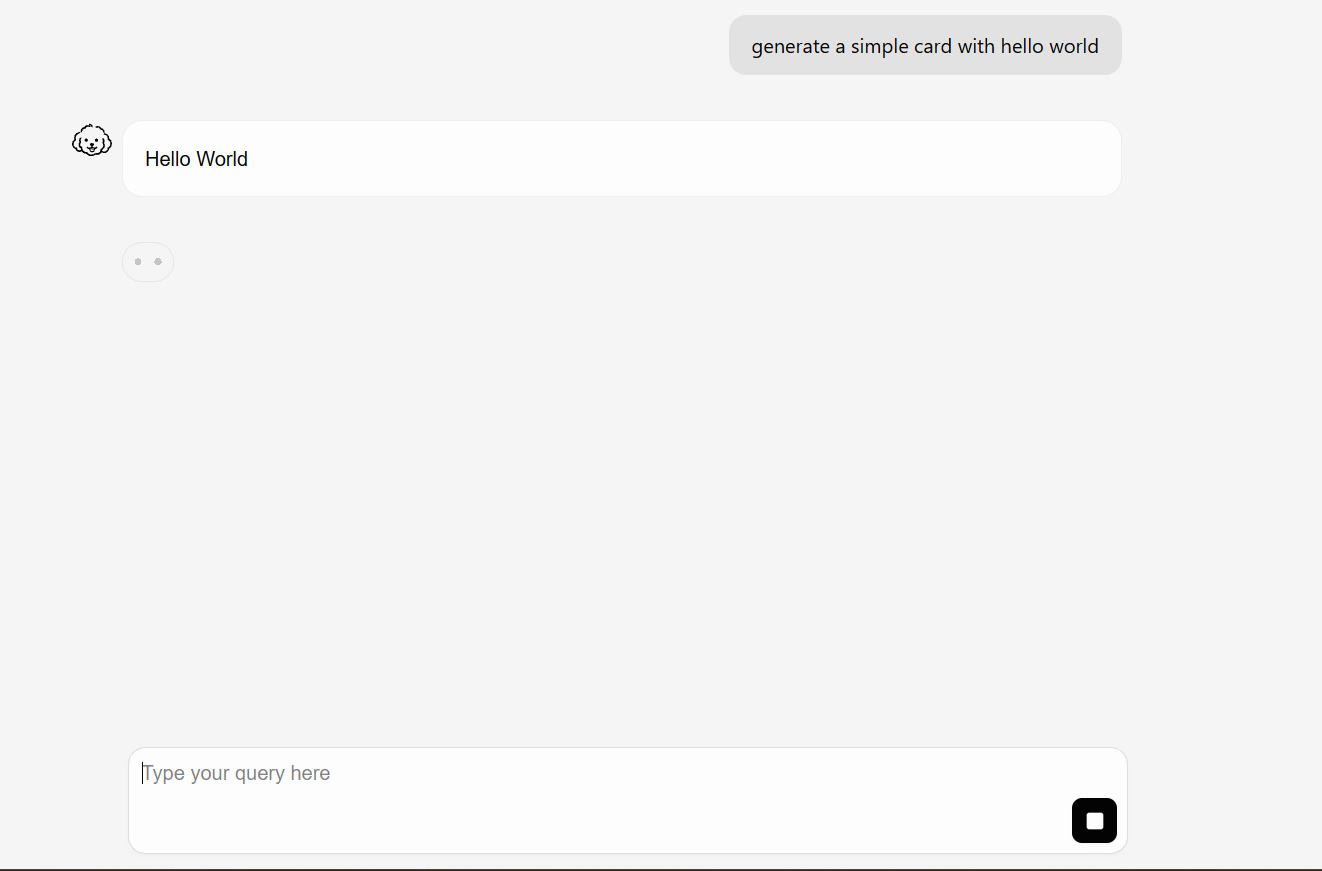
Click any prompt shown on the screen. If you get a response in the frontend, the setup is complete.
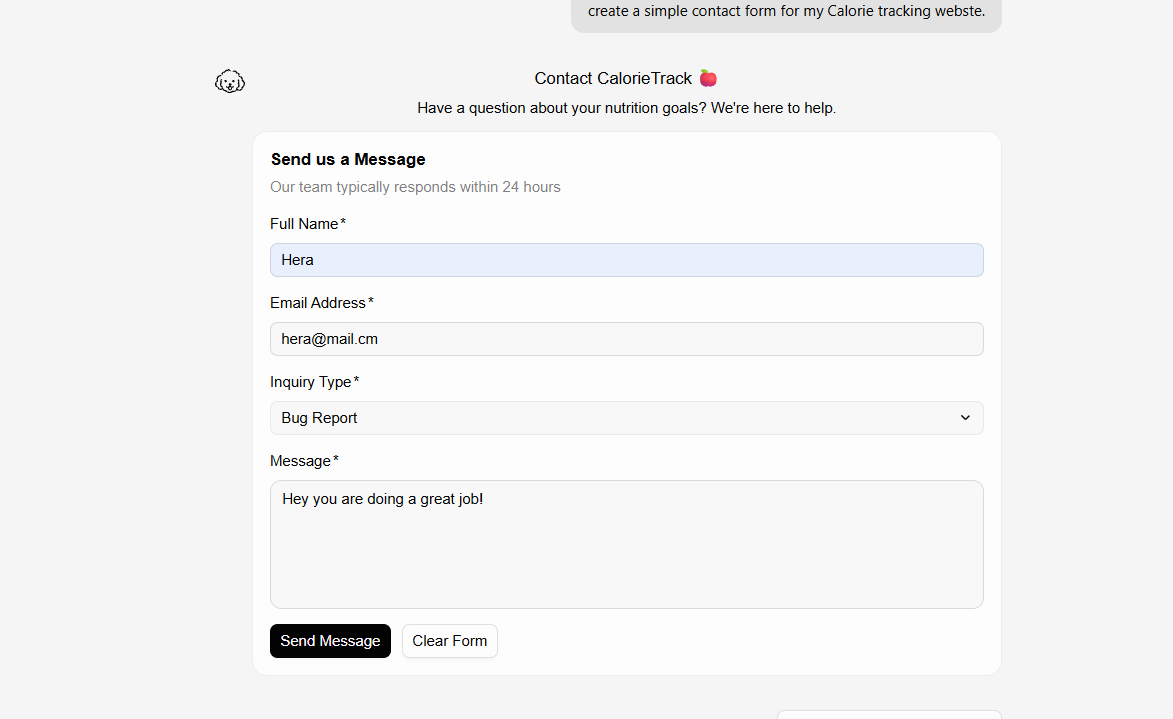
Try this prompt: Create a contact form with name, email, and message fields If a form appears, you're all set!
My Results:
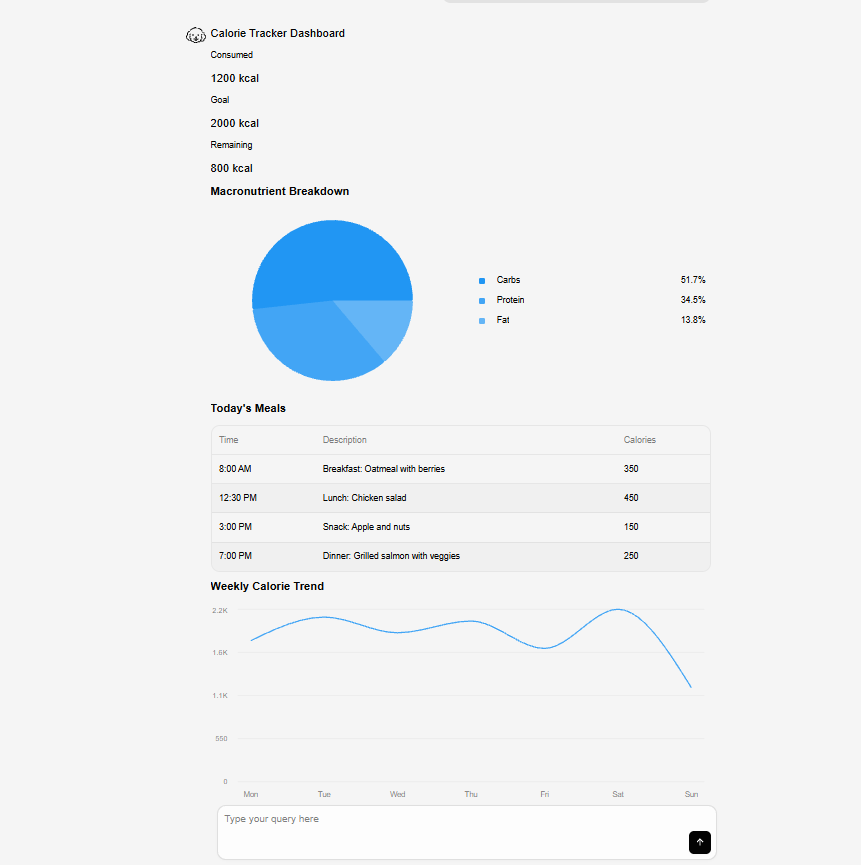
Using OpenRouter Hosted Models
You can also connect OpenUI to hosted models using OpenRouter instead of running models locally through Ollama.
This is useful if:
- your system does not have enough RAM for larger models,
- you want faster or more reliable generations,
- or you want to test larger hosted models without downloading them locally.
Models in the 27B–30B+ range generally followed instructions more reliably and handled larger UI generation tasks much better.
Step 1: Create an OpenRouter API Key
- Go to https://openrouter.ai
- Create an account
- Generate an API key from the dashboard
Step 2: Update the .env File
Replace your local Ollama configuration with:
OPENAI_BASE_URL=https://openrouter.ai/api/v1
OPENAI_API_KEY=your_openrouter_api_key
OPENAI_MODEL=google/gemma-3-27b-it
You can replace the OPENAI_MODEL value with any Ollama local or cloud-hosted model.
Common Issues and Fixes
touch .env Not Working on Windows
Problem:
PowerShell does not recognize the touch command.
Fix:
Create the .env file manually or run:
New-Item .env -ItemType File
404 model not found
# [Problem]
# The configured model does not exist in your Ollama installation.
#
# [Fix]
# Check installed models:
#   $ ollama list
#
# Then update the MODEL value inside .env with a valid installed model.
#
# Example:
#   OPENAI_MODEL=gpt-oss:20b
403 subscription required
# [Problem]
# Some Ollama cloud-hosted models require subscriptions or gated access.
#
# [Fix]
# Try another available cloud model or switch to a local model.
#
# Examples tested during setup:
# ├── qwen2.5-coder:14b
# ├── gpt-oss:20b
# ├── nemotron-3-super:cloud
# └── gemma4:31b-cloud
memory layout cannot be allocated
# [Problem]
# The selected model requires more RAM than your system can provide.
# (Commonly happens with gemma4:26b or glm-4.7-flash on low-memory setups)
#
# [Fix]
# ├── Use a smaller model
# ├── Reduce context length
# ├── Close other memory-heavy applications
# └── Use cloud-hosted models instead
Blank Screen or Broken UI
# [Problem]
# The model generated malformed openui-lang output (common with smaller local models).
#
# [Fix]
# ├── Increase the Ollama context length
# ├── Use a stronger model
# ├── Retry the generation
# └── Prefer larger models for complex dashboards and layouts
Increasing Context Length
Some local models performed significantly better after increasing the Ollama context length.
Example (Windows PowerShell):
setx OLLAMA_CONTEXT_LENGTH 8192
Restart your terminal after changing the value.
React Rendering Errors
Example:
Objects are not valid as a React child
Problem:
The model generated an invalid component tree or malformed structured output.
Fix:
- Retry generation
- Use a stronger model
- Increase context length
- Avoid extremely small local models for complex UI generation